
Thermalright Trofeo Vision
4.3Editor score
9.16 inch wide screen
Plug and play USB C
DIY software options
Modern PC builds often feature custom displays to show system stats or play media. An LCD screen for PC case adds functionality and style, turning your tower into an interactive hub. Choosing the right panel ensures seamless integration with your hardware and software.
We analyzed ten top-rated models based on resolution, connectivity, software support, and mounting flexibility. Our comparison covers options ranging from compact 6-inch units to wide 12-inch displays, ensuring you find a screen that fits your specific case and performance needs perfectly.
Each pick highlights key strengths like touch support or ARGB sync. Prices and availability fluctuate frequently, so check current listings before buying. This guide helps you navigate the options to find the perfect display for your unique gaming or workstation setup today.
4.3Editor score

4.4Editor score

4.0Editor score
As an Amazon Associate we earn from qualifying purchases.
This table provides a side by side look at the top ten LCD screens for PC cases. Compare key specifications and features to find the display that matches your build requirements and budget constraints effectively.




The Lian Li SM088X stands out as a top choice for modern builds with its 8.8 inch display and deep software integration. It offers a crisp view of hardware stats and supports custom media playback effectively.
We may earn a commission when you buy through this link, at no additional cost to you.
Its ability to function as an independent secondary display via USB is a major advantage for GPU head setups. The built-in ARGB lighting ensures your screen blends perfectly with your existing system aesthetics.
Installation is straightforward but requires attention to the provided screw guide to avoid damage. The software supports various layouts and allows for detailed customization of what is shown.
If you value seamless integration and high quality visuals, this screen is an excellent investment. It delivers a polished look and robust functionality that meets enthusiast standards for PC monitoring.
The USB powered design lets you use the screen as a secondary monitor without consuming GPU ports for a versatile setup experience.
L Connect 3 software allows you to upload custom videos and images for a truly personalized display experience inside your case.
We may earn a commission when you buy through this link, at no additional cost to you.
The darkFlash V92 offers a broad 9.2 inch screen that delivers sharp visuals and wide viewing angles for easy monitoring. Its ultra-wide format makes it ideal for displaying multiple stats at once.
We may earn a commission when you buy through this link, at no additional cost to you.
It connects via USB-C or motherboard headers and uses Station Space software for rich customization. This software enables dynamic widgets like weather and stock updates alongside system performance data.
The screen is not a standard monitor but focuses on sensor data which limits general desktop use. However for case internals monitoring it provides clear information without needing a separate monitor setup.
Choose this model if you want a bright wide display for detailed hardware tracking. The setup is simple and the visual fidelity helps keep your system health visible at all times.
Both USB-C and 9-pin headers are supported allowing you to route power and data through whichever port is most convenient for your build.
Station Space provides plugins for news and weather alongside system stats creating a rich information hub on your PC case.
We may earn a commission when you buy through this link, at no additional cost to you.
The WOWNOVA 8 Inch screen is highly rated for its 1280 by 800 resolution and support for desktop mode extending your workspace. It offers a balance of performance and ease of use for most builds.
We may earn a commission when you buy through this link, at no additional cost to you.
You can set it up quickly with a single cable connection and enjoy dynamic video themes that bring your case to life. The software is designed to be intuitive allowing easy changes to layouts and styles.
While it supports standard monitoring it also allows for extended desktop use making it versatile. The screen brightness and clarity ensure text and graphs remain readable even in well lit environments.
This model is great for users who want more than just hardware stats. The desktop mode feature provides added value for those who want extra screen real estate for apps or media.
The desktop mode lets you extend your main display to the screen for extra app windows or media playback directly from the case.
You can upload your own videos or choose from presets to display custom animations that match your PC aesthetic theme.
We may earn a commission when you buy through this link, at no additional cost to you.
The wisecoco 12.6 Inch screen provides a large viewing area ideal for detailed monitoring or media playback. It uses HDMI input which makes it versatile for use outside the case too.
We may earn a commission when you buy through this link, at no additional cost to you.
Built-in speakers add audio functionality without extra hardware making it a complete multimedia solution for gaming or streaming. The 60Hz refresh rate ensures smooth playback for dynamic content.
Mounting is simplified with included DIY kits and specific brackets for popular cases like the Hyte Y60. The wide format allows for clear visibility of complex graphs and data.
Select this screen if you prioritize size and multimedia features. The HDMI connection offers flexibility while the speakers provide a complete entertainment experience within your PC build setup.
Dual built-in speakers deliver clear sound for media without needing external speakers which keeps your desk setup clean and organized.
The HDMI input works with laptops and PCs making it useful for secondary displays beyond just internal case monitoring needs.
We may earn a commission when you buy through this link, at no additional cost to you.
The Hosyond 8.8 Inch touchscreen offers interactive control with a capacitive interface that responds well to touch input. It works with HDMI and supports various operating systems including Linux.
We may earn a commission when you buy through this link, at no additional cost to you.
Its driver-free design makes installation quick and hassle-free for most users. You can use it for AIDA64 monitoring or as a secondary screen for Raspberry Pi projects easily.
The screen brightness is high enough to be readable in bright rooms and the power consumption remains low. It provides a tactile way to interact with your system stats without needing a mouse.
This unit is perfect for users who want touch control. The broad OS support adds flexibility for hobbyists and developers looking to integrate a secondary display into their setup.
The capacitive touchscreen allows you to interact with widgets and controls directly on the display for a more intuitive user experience.
Works with Windows Linux and Raspberry Pi so you can use it across different projects without needing separate hardware for each system.
We may earn a commission when you buy through this link, at no additional cost to you.
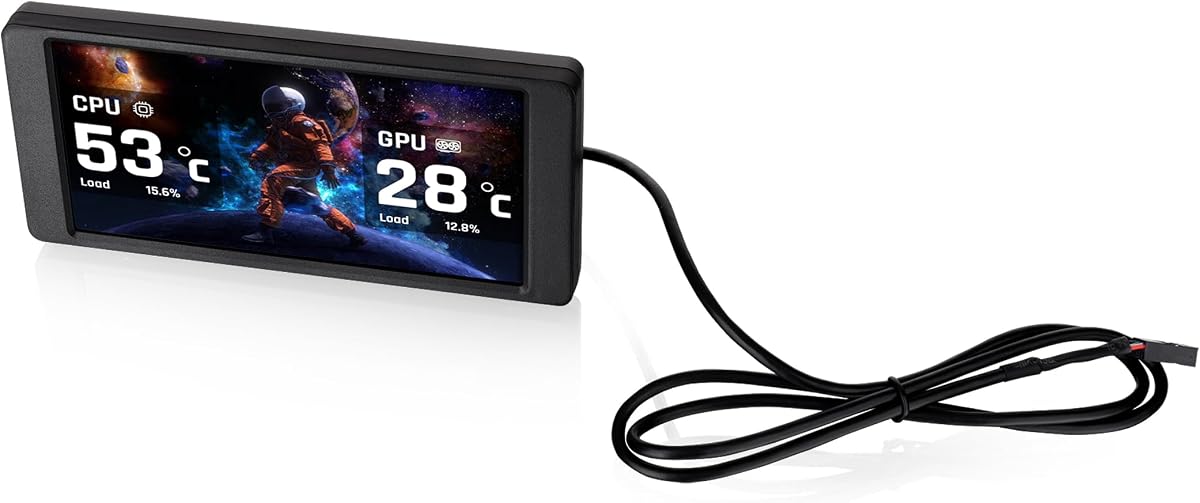
The Thermalright Trofeo Vision offers excellent value with a 9.16 inch display and robust monitoring features at a lower price. It is ideal for budget builders who want quality visuals.
We may earn a commission when you buy through this link, at no additional cost to you.
It connects via USB-C and uses TRCC software which provides DIY themes and real-time hardware tracking. The screen is slim and fits easily inside most standard PC cases.
While it lacks some premium features like touch it delivers clear visuals and reliable performance for system stats. The software interface is clean and easy to navigate for customization.
If you want a reliable display without spending a lot this is a strong choice. It balances cost and performance well making it accessible for a wide range of PC enthusiasts.
The included TRCC app lets you create custom layouts and choose from preset themes to match your build style easily.
At only 17mm thick the screen takes up minimal space inside your case allowing for easier cable management and cooling.
We may earn a commission when you buy through this link, at no additional cost to you.
The Thermaltake 6.0 Inch kit is designed to work seamlessly with View series cases providing a polished look for compatible builds. It features a 1480 by 720p display that is bright and clear.
We may earn a commission when you buy through this link, at no additional cost to you.
It supports TT RGB Plus 3.0 for unified control of your system lighting and visuals. You can upload custom backgrounds and monitor system data like temps and loads in real-time.
The standalone design means it does not rely on a host PC to display images which adds flexibility. However its compatibility is mostly limited to specific Thermaltake models.
This is a solid option for Thermaltake owners seeking integrated aesthetics. The software allows for good customization but verify case compatibility before purchase to ensure proper fit and function.
You can upload up to 20 custom graphics in various formats to personalize the look of your case panel display.
The kit supports standalone mode allowing it to display content even when the PC is off for a unique visual effect.
We may earn a commission when you buy through this link, at no additional cost to you.
The GeeekPi 12.6 Inch screen brings premium features like 10-point touch and dual speakers to your build. It offers a large high-resolution display that fits perfectly in Hyte Y60 cases.
We may earn a commission when you buy through this link, at no additional cost to you.
You can interact with the screen using your fingers to control apps or widgets. The touch accuracy is high and the IPS panel ensures colors look good from any angle.
Built-in speakers provide audio without extra clutter and the setup is plug-and-play on Windows and macOS. The screen is responsive and supports multiple simultaneous touch inputs for complex control.
Choose this for a high-end multimedia experience in your PC. It excels in both visual quality and interactivity making it a top choice for enthusiasts wanting a complete package.
The multi-touch support allows multiple gestures at once giving you smooth control over complex interfaces and applications.
Specifically designed for Hyte Y60 cases it installs securely without extra adapters saving time and ensuring a clean look.
We may earn a commission when you buy through this link, at no additional cost to you.
The Thermalright TV 9.16 uses a magnetic suction design that makes installation and removal very quick and easy. It avoids the need for screws and tools during setup.
We may earn a commission when you buy through this link, at no additional cost to you.
You can mount it directly onto compatible surfaces and swap it out when needed. The TRCC software provides control over display functions and content options for customization.
The metal frame adds durability while the USB-C connection keeps cable management simple. It supports both static and dynamic image display for various use cases.
This is a great pick for those who value flexibility and ease of use. The magnetic system saves time and allows you to reposition the display as your build changes.
The magnetic design lets you attach the screen quickly without screws which is perfect for modular builds or quick changes.
You can switch between static images and dynamic videos to suit your mood or highlight specific system performance data.
We may earn a commission when you buy through this link, at no additional cost to you.
The Thermalright Trofeo Vision 6.86-inch model is ideal for compact builds where space is tight. It supports magnetic mounting and fits well on CPU coolers or case panels.
We may earn a commission when you buy through this link, at no additional cost to you.
While the resolution is lower it provides clear enough text for essential stats like temperature and usage. The software allows for DIY themes and dynamic content display.
It connects via USB-C and works with standard motherboard headers making it easy to power and control. The small size helps it blend into the build without drawing too much attention.
This is a good choice for smaller cases or AIO cooler setups. It delivers basic functionality efficiently for those who need essential stats without a large screen footprint.
The screen can be paired with AIO liquid coolers to show temps directly on the pump or radiator area for easy monitoring.
Its small 6.86-inch size ensures it fits into tight spaces where larger displays would interfere with cable management or airflow.
We may earn a commission when you buy through this link, at no additional cost to you.
Choosing an LCD screen for your PC case involves balancing size, resolution, connectivity, and software support. Consider your case dimensions and mounting options to ensure the display fits perfectly and functions as intended.
Screen sizes range from 6 inches to 12 inches or more. Larger screens offer better visibility but require more space inside or outside the case. Resolution impacts clarity so aim for at least 1280×480 for sharp text and graphs.
For most builds, an 8 to 9 inch screen balances visibility and space. Ensure the display area fits your case panel or mount location to avoid interference with cables or fans.
Most screens use USB-C or 9-pin headers. USB-C is versatile and can provide power and data through a single cable. Some models support HDMI for external use but this adds complexity.
Check your motherboard availability before buying. USB headers are common but USB-C ports on the front panel might be needed for plug-and-play setups.
Software is key for customization. Look for apps that allow custom widgets, themes, and real-time monitoring. Some require specific OS versions like Windows 10/11 while others support Linux or Raspberry Pi.
Ease of use matters. A simple UI helps you set up quickly. Verify software is updated and supported by the manufacturer for long-term reliability.
Some screens fit specific cases like Hyte Y60 or Thermaltake View. Others offer universal brackets or magnetic mounts for versatile placement. Ensure the mounting kit is included if you lack tools.
Magnetic mounts save time for installation but may lack stability in tight spaces. Universal mounts with adjustable tilt are better for viewing angles from the side or front.
Touchscreens let you control widgets and apps directly from the case. Capacitive touch is standard and works well with software interfaces. Multi-touch support adds flexibility for complex controls.
Touch is useful for hobbyists and developers. If you only need passive monitoring, a non-touch screen is often cheaper and equally effective for stats display.
Some screens include built-in speakers or HDMI inputs for audio. This turns the display into a mini media player for videos or system sounds. Ideal for gaming setups wanting extra entertainment options.
Audio features add value but might be unnecessary for simple monitoring. Check if you need external speakers or if internal ones suffice for your setup.
Prices vary widely from budget to premium tiers. Higher prices usually mean better resolution, touch support, or brand-specific integration. Determine what features matter most before spending.
Focus on long-term value. A slightly pricier screen with better software might save headaches later. Avoid models with poor driver support or discontinued software.
Ensure the screen works with your OS. Windows is widely supported but Linux or Mac compatibility is less common. Verify if AIDA64 or specific drivers are needed for monitoring data.
Compatibility affects ease of use. If you use non-Windows systems, choose models with broad OS support to avoid software limitations or extra configuration steps.
Start by checking the required cables and software. Connect the USB or header properly before powering on the PC. Install any needed drivers or apps to enable monitoring and customization features.
Set up the software to display your preferred stats and widgets. You can upload custom images or videos to personalize the look. Adjust brightness to match ambient lighting conditions effectively.
Keep the screen clean with a microfiber cloth to avoid scratches. Avoid using harsh chemicals. If the display stops working, check connections and restart the PC to restore functionality.
Most cases support screens between 8 and 9 inches. Measure your case panels or internal space to ensure a fit. Compact cases might require 6-inch displays while open frames can hold larger models.
Yes, most require dedicated apps for monitoring and customization. These tools enable real-time stats and theme changes. Check if the software supports your operating system before installing.
Some models support secondary monitor modes but they are limited by resolution and connection. Most are designed for internal stats only. Check HDMI or USB-C modes for external display support.
USB headers provide power and data. 9-pin headers use motherboard power while USB-C uses external ports. Ensure your PSU or motherboard can supply enough current for the display.
Fewer screens support Linux. Models with HDMI or generic USB modes work better. Always verify OS compatibility with the manufacturer before purchasing for Linux-based systems.
Most software allows brightness adjustment for comfort. Some screens have hardware buttons for quick changes. Brightness control helps reduce glare and eye strain during use.
The Lian Li SM088X, Thermalright Trofeo Vision, and GeeekPi 12.6 Inch are top choices for different needs. They balance performance and value to suit various build styles and budgets effectively.
Consider connectivity and mounting options before buying. Choose a screen that matches your software preferences and case design for a seamless integration experience.
Prices change frequently so check current deals. Ensure the model you pick has the features you need before finalizing your purchase for the best long-term satisfaction.