
BenQ MA270UP 27” 4K
4.3Editor score
Mac Color Match tuned
90W power delivery
Mac volume controls
Finding the perfect external display for your MacBook Pro is essential for enhancing productivity and visual clarity. A compatible monitor ensures seamless connectivity and color fidelity that matches Apple’s ecosystem perfectly.
We evaluated ten top-rated monitors based on resolution, refresh rate, and USB-C capabilities. Our selection process prioritizes devices that offer reliable power delivery and accurate color reproduction for professionals.
Each pick below highlights key strengths and ideal use cases for different workflows. Please note that pricing fluctuates frequently, so verify current deals before making your final purchasing decision today.
4.3Editor score
5.0Editor score

4.6Editor score
As an Amazon Associate we earn from qualifying purchases.
This table provides a side-by-side look at all ten selected monitors. Review the specifications to find the model that best fits your specific workflow and budget requirements.



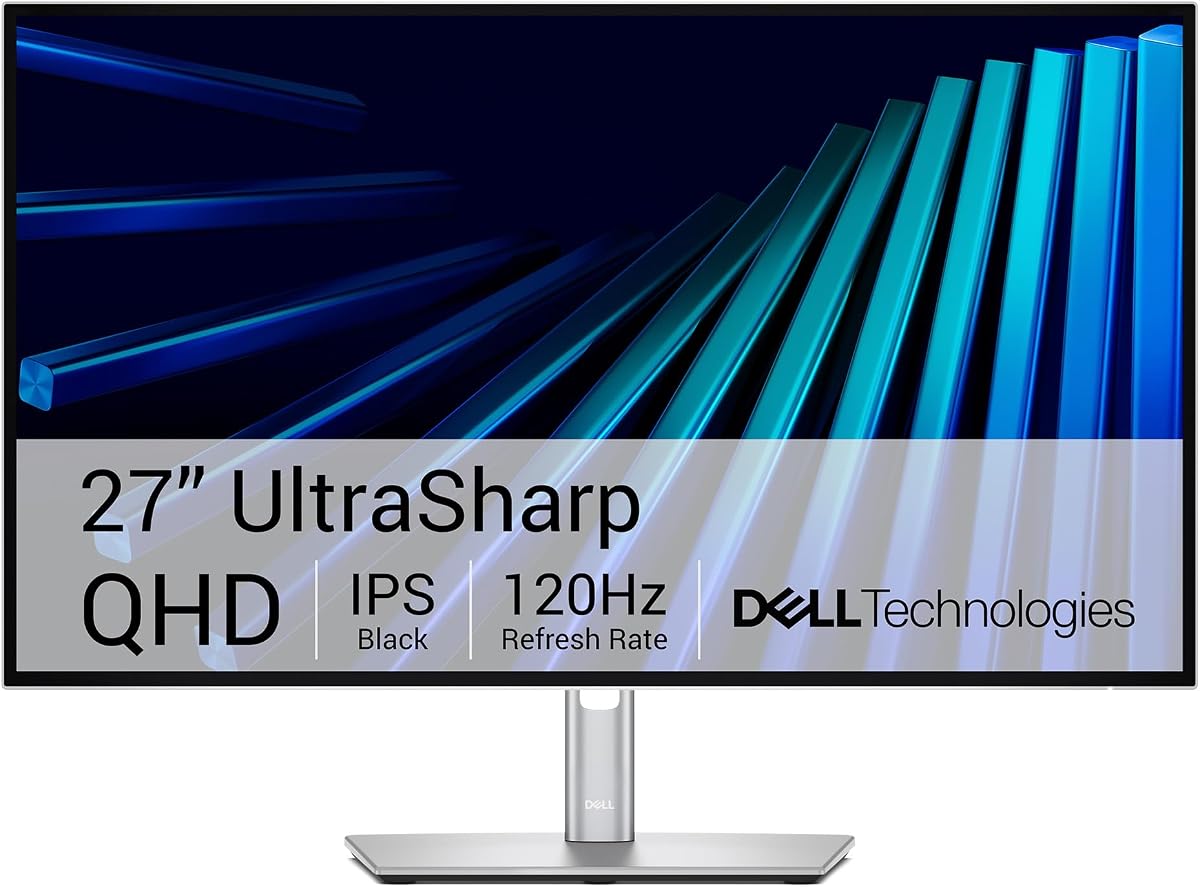
The Dell UltraSharp U2726DER stands out as a top-tier display for professionals requiring precise color work. Its perfect rating reflects a highly polished experience for MacBook users seeking reliability.
We may earn a commission when you buy through this link, at no additional cost to you.
Key strengths include factory calibration ensuring 98% Display P3 coverage for true-to-life imagery. The integrated Thunderbolt hub simplifies cabling while supporting dual 4K streams efficiently.
Trade-offs involve a premium cost and QHD resolution instead of 4K. These are acceptable given the seamless Mac integration and robust connectivity features it offers.
Creative professionals and developers will appreciate the KVM switch for managing multiple devices. This monitor is the top recommendation for those prioritizing ecosystem integration.
Factory calibration ensures every shade looks true to life straight out of the box.
Connect your laptop and peripherals through a single cable for a cluttered desk setup.
We may earn a commission when you buy through this link, at no additional cost to you.
BenQ designed this monitor specifically for MacBook users, earning high praise for its seamless integration. The rating reflects a strong balance of color fidelity and convenience features.
We may earn a commission when you buy through this link, at no additional cost to you.
Highlights include Mac Color Match which tunes the display to match built-in laptop screens perfectly. Volume and brightness controls work directly with your MacBook keyboard for ease of use.
The price is a consideration compared to generic monitors. However, the convenience and specific macOS features justify the investment for Apple-centric workflows.
MacBook Pro and Air users looking for a dedicated external display should consider this model. It offers the closest experience to extending your laptop screen.
Adjust brightness and volume using the media keys on your MacBook keyboard.
Enjoy vibrant visuals with a wide P3 color gamut that matches modern content.
We may earn a commission when you buy through this link, at no additional cost to you.
For users seeking a cost-effective display, this Philips monitor delivers impressive value. The high rating indicates customer satisfaction with its performance and design.
We may earn a commission when you buy through this link, at no additional cost to you.
It offers Full HD visuals and a VA panel that provides decent contrast for typical office tasks. The bezel-free design looks modern and fits well in dual setups.
Trade-offs include lower resolution compared to premium 4K options. This is acceptable for those focused on document work rather than detailed creative content.
Students or home office workers wanting to expand screen real estate without overspending will find this ideal. It is the best entry point for multi-monitor productivity.
Achieve a modern multi-monitor setup without breaking your budget.
Flicker-free technology ensures you can work long hours without discomfort.
We may earn a commission when you buy through this link, at no additional cost to you.
This LG Ultrafine model combines crisp 4K clarity with HDR capabilities suitable for content creators. The rating reflects a strong overall package for multimedia workflows.
We may earn a commission when you buy through this link, at no additional cost to you.
Key strengths include HDR400 certification and a wide DCI-P3 gamut that brings movies to life. USB-C connectivity supports high power delivery for laptop charging.
HDR brightness levels are moderate compared to premium displays. This is acceptable given the value and versatile connectivity it offers daily tasks.
Video editors and media consumers looking for sharp visuals will enjoy this screen. It offers a balance of performance and features for a competitive price.
Explore content with a wide color gamut that makes images pop.
Connect various devices easily with multiple ports and robust power delivery.
We may earn a commission when you buy through this link, at no additional cost to you.
This Dell monitor offers smooth visuals ideal for dynamic content and casual gaming. The high score indicates user approval of its responsiveness and design.
We may earn a commission when you buy through this link, at no additional cost to you.
Key strengths include a 144Hz refresh rate and fast response time that eliminate motion blur. It fits seamlessly into a workspace with adjustable height options.
Trade-offs include lack of USB-C ports and lower resolution. These are acceptable for users prioritizing motion clarity over pixel density.
Those wanting fluid scrolling or casual gaming on a secondary screen will find this useful. It is a solid choice for responsive performance.
Enjoy smooth transitions and scrolling thanks to a high refresh rate.
Customize your viewing angle easily with a versatile ergonomic stand.
We may earn a commission when you buy through this link, at no additional cost to you.
This monitor is tailored for designers needing consistent colors across displays. The rating confirms its effectiveness in professional creative environments.
We may earn a commission when you buy through this link, at no additional cost to you.
Key strengths include factory calibration and ICCsync for seamless color management. The Nano Matte panel reduces glare while preserving contrast and clarity.
Trade-offs involve specialized tools that may not benefit casual users. These are acceptable for those prioritizing visual consistency in their work.
Graphic designers and illustrators requiring accurate reproduction will love this device. It simplifies color matching across multiple screens effectively.
Ensure your work looks the same on all screens with intelligent sync.
Focus on your creative work without distractions from room lighting.
We may earn a commission when you buy through this link, at no additional cost to you.
This LG model offers a clean look with sharp 4K visuals. The rating reflects satisfaction with its aesthetics and clarity for general work.
We may earn a commission when you buy through this link, at no additional cost to you.
Key strengths include borderless design making multi-monitor setups visually seamless. HDR10 support adds depth to compatible media content.
Trade-offs include basic HDR brightness and simple stand features. These are acceptable for users prioritizing screen real estate and aesthetics.
Users wanting a sleek monitor for text work or general office use should pick this. It looks great on any desk without clutter.
Focus entirely on your content with minimal bezel distractions.
Split your screen efficiently using the built-in Switch app for multitasking.
We may earn a commission when you buy through this link, at no additional cost to you.
This Dell monitor balances 4K resolution with a high refresh rate for versatile use. The rating indicates broad appeal among productivity users.
We may earn a commission when you buy through this link, at no additional cost to you.
Key strengths include 99% sRGB coverage ensuring accurate text rendering. The 120Hz rate provides smoother scrolling for comfortable viewing.
Trade-offs include standard contrast and limited ports compared to hubs. These are acceptable for users wanting a straightforward high-quality display.
General users wanting crisp visuals and smooth motion will find this suitable. It fits well for work and light media consumption.
Enjoy fluid scrolling and animation with a 120Hz refresh rate.
Reduce blue light exposure while maintaining color accuracy with ComfortView.
We may earn a commission when you buy through this link, at no additional cost to you.
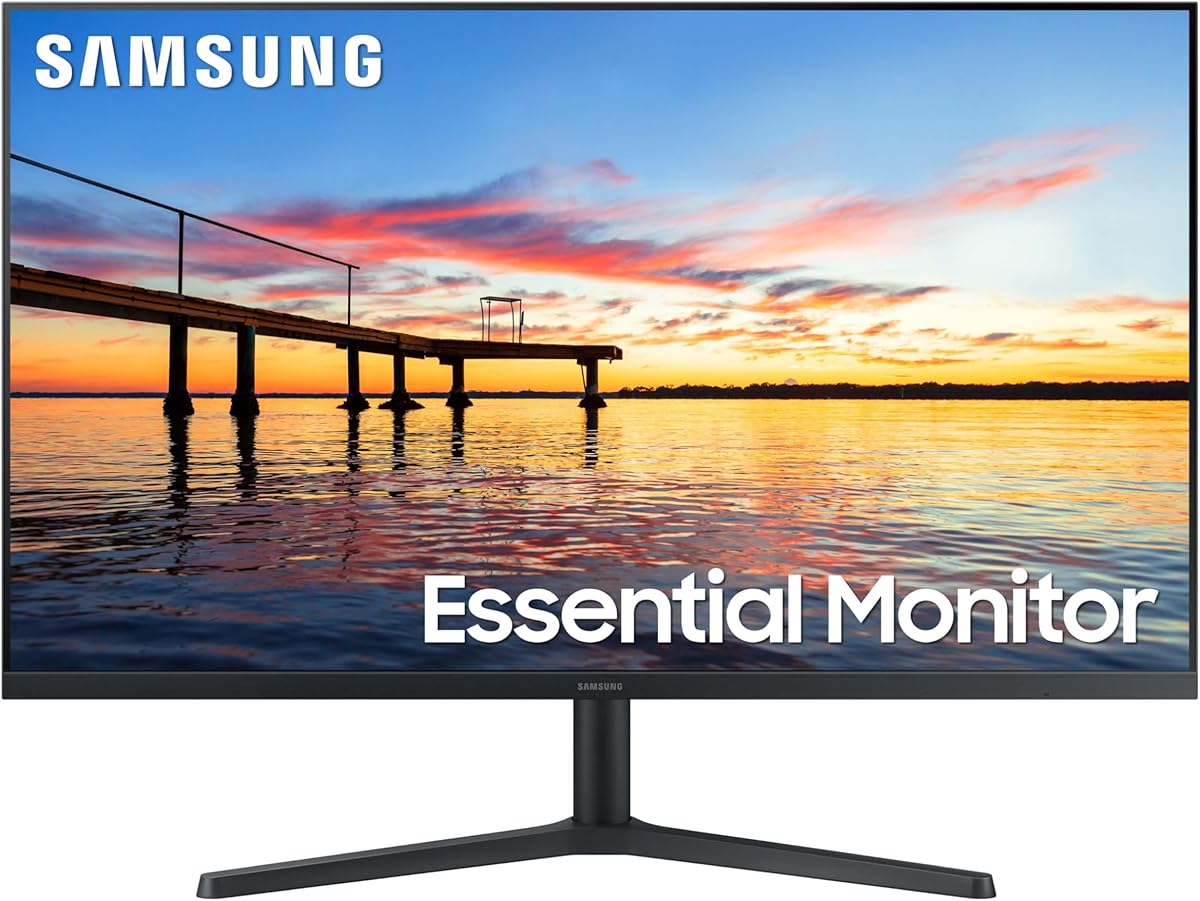
This Samsung monitor offers a large canvas ideal for spreadsheets and layouts. The rating confirms satisfaction with its size and value.
We may earn a commission when you buy through this link, at no additional cost to you.
Key strengths include a 32-inch display providing ample space for side-by-side apps. The borderless design makes it look modern and immersive.
Trade-offs include lower resolution and lack of USB-C connectivity. These are acceptable for users prioritizing screen real estate over pixel density.
Data analysts or writers needing extensive viewable space should consider this model. It helps maximize productivity without multiple screens.
Manage complex documents and multiple windows with ease.
Reduce strain during long sessions with advanced eye care technology.
We may earn a commission when you buy through this link, at no additional cost to you.
This monitor offers a solid entry into QHD resolution for MacBook users. The rating reflects a reliable performance for standard office tasks.
We may earn a commission when you buy through this link, at no additional cost to you.
Key strengths include crisp text rendering and smooth motion due to 100Hz refresh. USB-C connectivity simplifies setup even with limited power.
Trade-offs include low power delivery for charging and limited HDR utility. These are acceptable for users needing a simple secondary screen.
Office workers wanting clear text and basic connectivity will appreciate this option. It is an affordable choice for daily productivity.
Read documents and code clearly with high resolution QHD.
Connect easily with USB-C for data and basic power needs.
We may earn a commission when you buy through this link, at no additional cost to you.
Choosing the right monitor involves balancing technical specs with your workflow needs. These factors help you narrow down the best option for your specific setup.
Resolution determines pixel density and sharpness. For text work, QHD or 4K is preferred to avoid blurry edges. Lower resolutions may suffice for general browsing.
Prioritize 4K or QHD for crisp visuals on a Mac.
Color coverage is critical for designers and photographers. Look for sRGB or P3 coverage above 90% for true-to-life colors. Calibration ensures consistency over time.
Check color gamut percentages to match your creative needs.
USB-C with power delivery simplifies cabling significantly. HDMI and DisplayPort offer compatibility with various laptops. Consider hubs for expanded peripheral connectivity.
USB-C with power delivery is the most convenient choice.
Refresh rate affects motion smoothness and scrolling. Higher rates reduce blur and improve responsiveness. 60Hz is standard, but higher is beneficial for dynamic content.
Select 100Hz or higher for smoother scrolling and motion.
Eye comfort tech like flicker-free and blue light reduction protects vision. This is essential for long work sessions to prevent strain. Certifications like TÜV validate these claims.
Look for certifications ensuring eye comfort for long work.
Adjustable stands allow proper viewing angles to prevent neck strain. Height, tilt, and pivot adjustments help customize comfort. VESA mounts provide flexibility for arm or wall setups.
Ensure adjustable stands or VESA mounts for proper posture.
Panel type determines color and contrast performance. IPS offers wide viewing angles and better colors. VA provides deeper blacks. TN is fast but less vibrant.
Choose IPS for color accuracy and wide viewing angles.
Some monitors offer features tailored to macOS. This includes control via keyboard or color matching. Ensure compatibility with macOS before purchase.
Check for Mac-specific features for seamless integration.
Proper setup starts with using high-quality cables to connect your laptop. Ensure the USB-C or HDMI cable supports the needed data and power throughput for best performance.
Clean the screen regularly using a microfiber cloth to avoid scratches. Avoid harsh chemicals that could damage the display coating or frame materials over time.
Adjust brightness levels to match your room lighting to reduce eye strain. Use sleep modes or screen timeout settings to conserve energy when not in use.
Yes, most modern monitors work with MacBook Pro models. Ensure you have the right adapters if the ports do not match. USB-C is generally the best option for power and data.
4K provides sharper text and more detail on larger screens. QHD is sufficient for smaller sizes and easier on the graphics card. Consider your screen size before deciding.
Many USB-C monitors support power delivery to charge your laptop. Check the wattage to ensure it meets your MacBook's charging needs. Higher wattage supports faster charging speeds.
For design work, look for P3 coverage to match modern displays. For general use, sRGB is standard and reliable. Always verify the percentage listed in the specs.
High refresh rates help with scrolling smoothness and reduce motion blur. It is not strictly necessary for static tasks but improves comfort over time. Higher rates are more comfortable.
Go to System Settings and select Displays to scale resolution. Enable high DPI scaling for sharper text on smaller screens. Check the Arrangement tab for multi-monitor setups.
Thunderbolt offers fast data transfer and single cable connectivity. It is ideal if you need to connect peripherals directly to the monitor. Consider your budget before upgrading.
Flicker-free and blue light filters reduce strain significantly over hours. They are beneficial for long work sessions or reading. Look for certifications to ensure effectiveness.
Our top picks include the Dell UltraSharp Thunderbolt for professionals and the BenQ for Mac integration. Budget users might prefer the Philips or LG QHD models for value.
Prioritize color accuracy and USB-C connectivity if your workflow demands precise visuals. Otherwise, focus on refresh rates and ergonomics for general productivity tasks daily.
Prices vary frequently so always check current deals before buying. Verify compatibility with your specific MacBook model for the best experience.